Overview
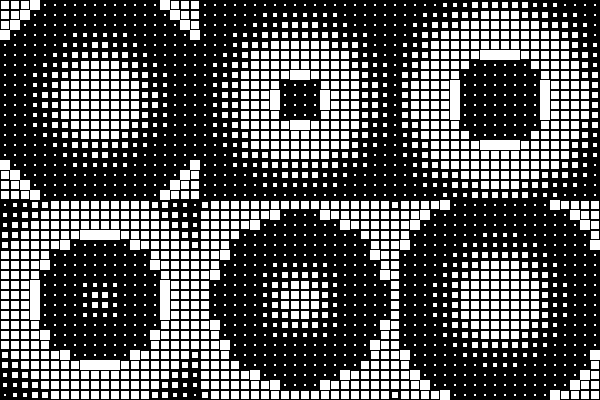
Blitter is a macOS app for creating small, seamless, looping pixel animations — the kind of thing you'd use for an app icon coming to life, a loading spinner, a favicon, a subtle UI micro-interaction, or just a satisfying looping pattern to put on a wallpaper or share online. Everything it makes is tileable: the pattern above is one repeating square, drawn 400 times in a grid, each copy just a little further along in its own loop than its neighbor. That's the whole idea, and it's more flexible than it sounds.
What you're actually making
Every animation in Blitter comes from three things layered together:
- A tile animation — how one square fills in over time. Maybe it grows from the center, sweeps left to right, or scatters in randomly. This is the Sequence control.
- A grid of that tile, time-shifted — instead of every tile playing in perfect sync (which just looks like one big blinking square), each tile can start at a different point in the loop. That's what turns a single growing square into a ripple, a wave, or a scatter effect moving across the whole grid. This is the Time shift control.
- Color, timing, and shape on top — solid colors or a gradient, how fast it plays, whether the grid itself is masked into a shape like a heart or a star.
Because it's all just numbers under the hood (not hand-drawn frames), everything stays perfectly tileable and infinitely tweakable — nudge one slider and the whole grid updates live.
The five things this guide covers
- Exporting — turning your setup into an actual file: which format to pick for which purpose (GIF vs. MP4 vs. sprite sheet vs. others).
- Library — your private, on-device collection of saved setups: saving, naming, browsing, and deleting.
- Preview & Playback — the live preview area itself: zoom, play/pause, scrubbing to a specific frame.
- Controls — every control in the sidebar, in detail, with examples showing exactly what each one changes. This is the bulk of the guide.
- Glossary — plain-English definitions for any term that isn't obvious at a glance.
One example, throughout
To make it easy to compare controls, every example in this guide starts from the same baseline setup — a 20×20 grid of squares, each blooming outward from its own center, rippling out from the middle of the grid — and changes exactly one thing at a time. When you see three or four versions of the same animation side by side, that's the point: everything else is held constant so you can see what one control actually does.