Time shift
This is the section that turns a single repeating tile into a grid effect — a wave, a ripple, a scatter — rather than 400 copies of the same tile blinking in unison.
Pattern
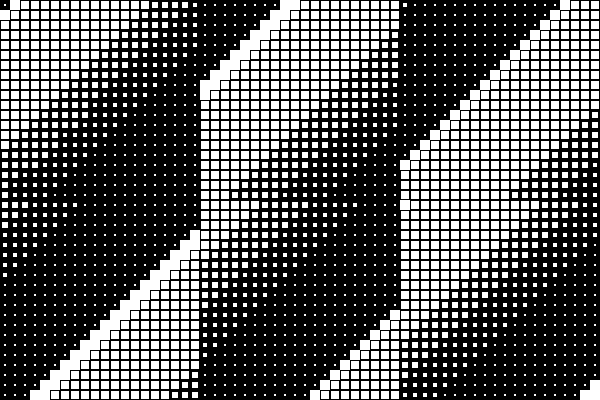
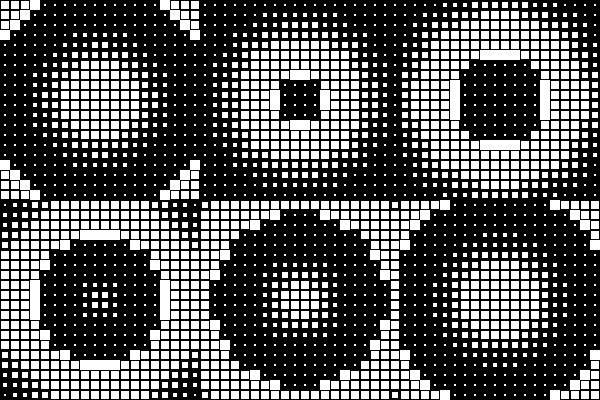
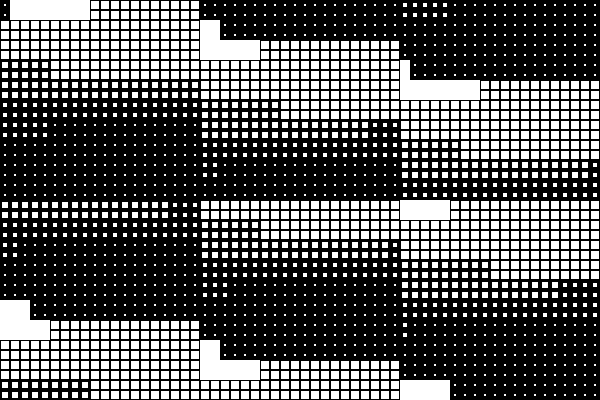
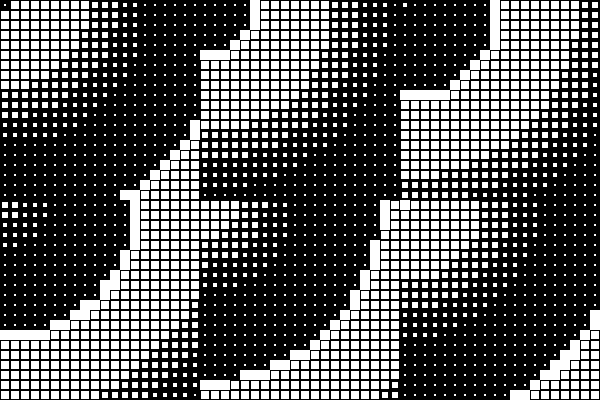
What it does: picks how each tile's start point in the loop is staggered relative to its neighbors. Every pattern is really just a rule for "how far is this tile from wherever the pattern starts" — a straight line for Sweep, a distance from a point for Radiate, and so on.
| Sweep (a straight wave) | Radiate (baseline — a ripple from a point) | Snake (a trail winding through rows) | Scatter (a fixed random arrangement) |
|---|---|---|---|
 |
 |
 |
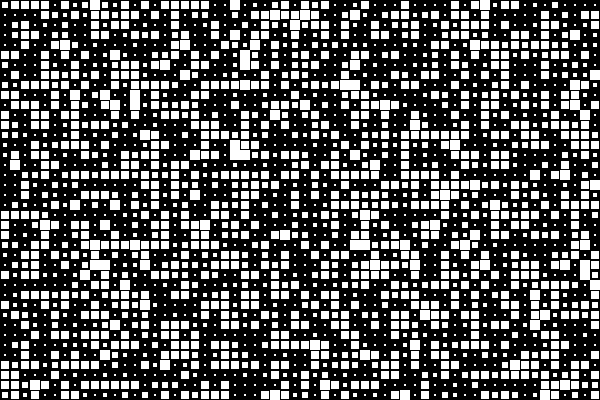 |
Three more patterns round out the picker, each a variation you'll recognize once you've seen the four above: Checkerboard (an instant two-step alternation rather than a smooth gradient), Spiral (like Radiate, but winding around its origin as it expands rather than growing evenly outward), Interference (two Sweep patterns combined into one, for a woven or overlapping look), and Noise (like Scatter, but a smoothly flowing random field instead of a fixed per-tile arrangement).
Picking None turns time shift off entirely — every tile plays in perfect sync, which is exactly what the Sequence examples on the Tile page use to show each preset clearly on its own.
Stagger
(Shown as "Phase" in the app today — see the glossary for why these docs use a different word for the same control.)
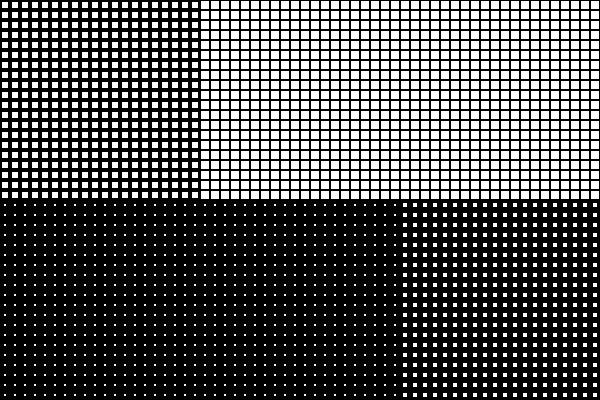
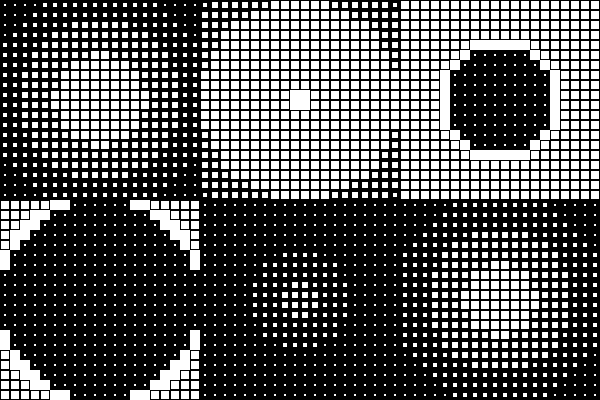
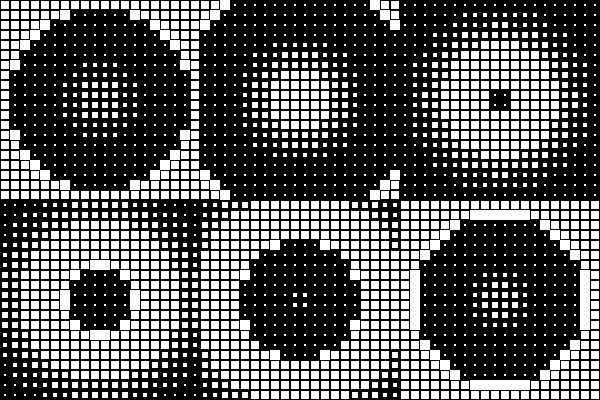
What it does: how much of one full loop cycle separates the earliest tile in the pattern from the latest one — in other words, how spread out in time the pattern is across the grid.
| 0% (no spread — every tile in sync) | 50% | 100% (baseline) | 200% |
|---|---|---|---|
 |
 |
 |
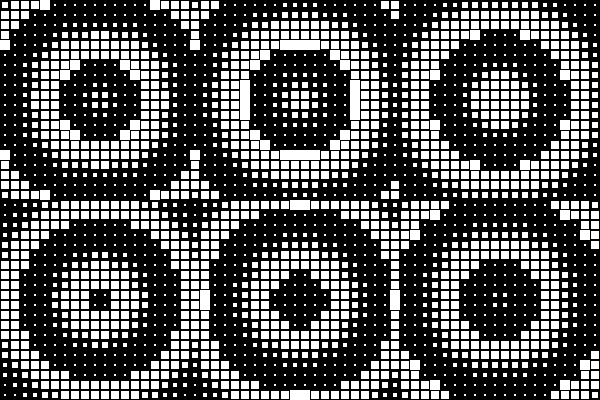 |
At 0%, the chosen pattern doesn't matter at all — every tile is in sync regardless. At 100%, the full grid spans exactly one loop: while the pattern's start point is finishing, the far edge is just beginning. At 200%, that spread doubles, so the same pattern visibly takes two full loops to cross the grid — a slower-feeling wave, without changing how fast any individual tile animates.
Each pattern's own settings
Once you pick a pattern, a few extra controls appear underneath it — specific to that pattern. Two of the most commonly used are broken down below; the others (Snake, Spiral, Checkerboard, Interference, Scatter, Noise) follow the same idea — a small number of knobs that adjust the shape of that one pattern — and are best explored directly in the picker, where every option previews live.
Sweep: Angle & Frequency
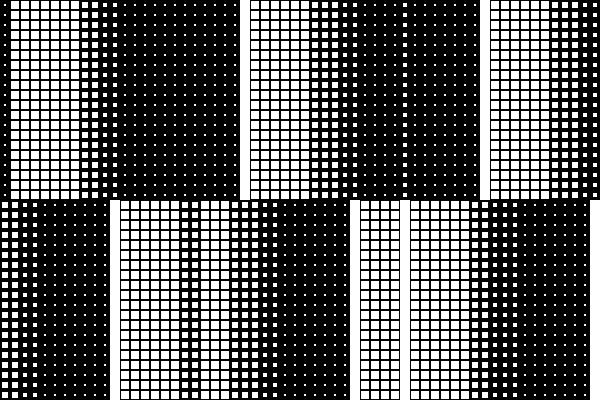
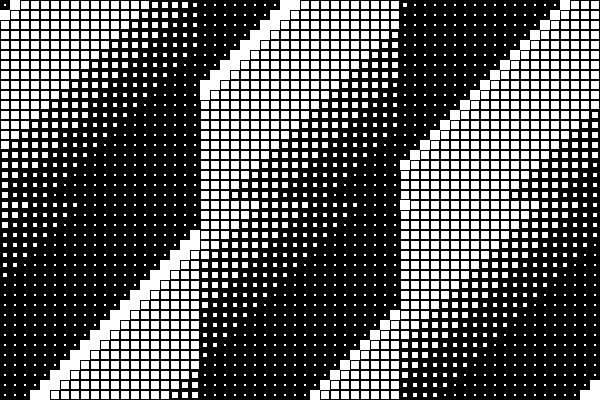
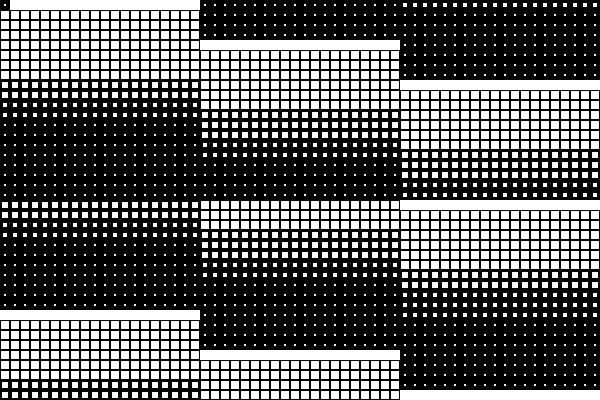
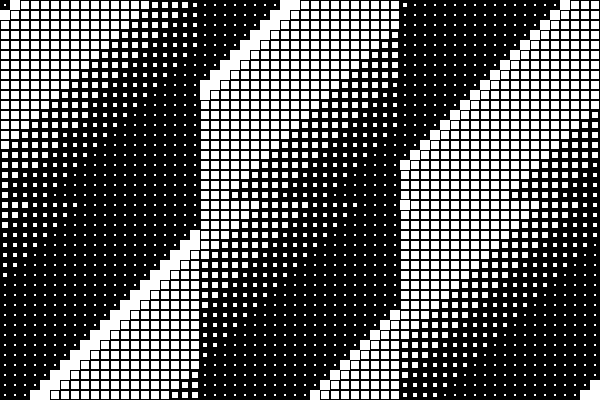
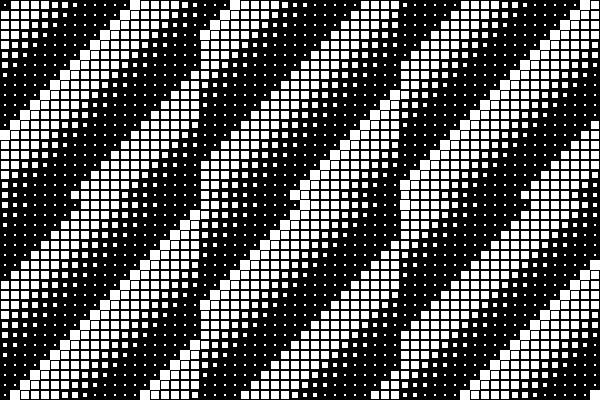
Angle sets the direction the wave travels. Frequency repeats the wave that many times across the grid instead of just once (higher frequency = more, tighter bands).
| Angle 0° | Angle 45° (baseline) | Angle 90° |
|---|---|---|
 |
 |
 |
| Frequency 1 (one wave) | Frequency 3 (three repeating bands) |
|---|---|
 |
 |
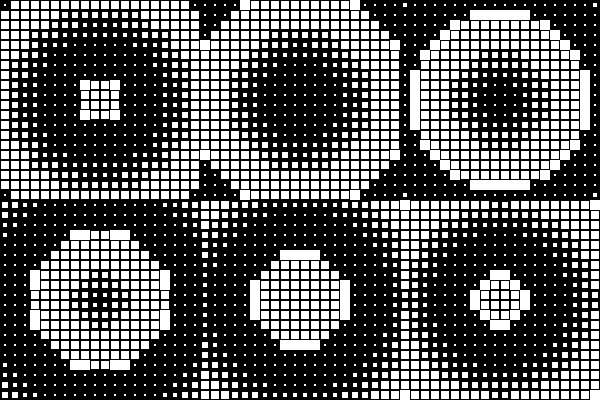
Radiate: Shape, Origin & Invert
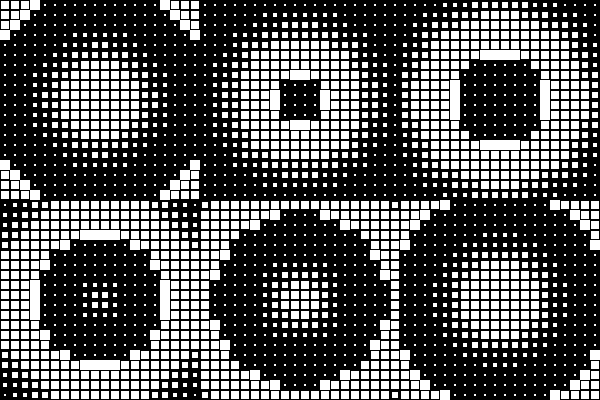
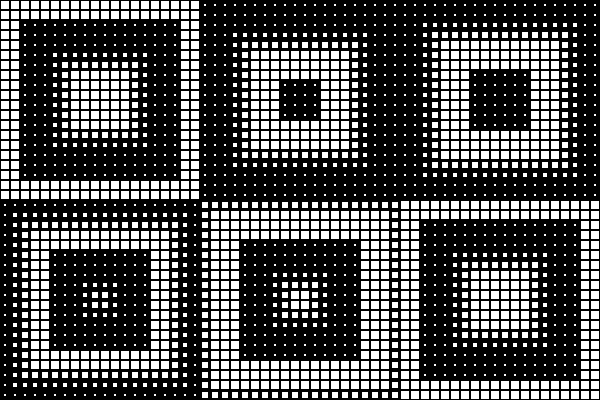
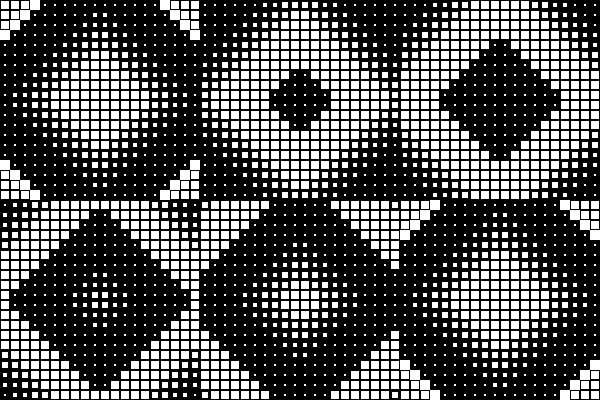
Shape changes the geometry of the ripple's front — a circle, a square (shown here), a diamond, and a few others. Origin moves the point it radiates from (default: the center). Invert flips which end of the ripple leads — starting from the origin outward, or from the far edges inward.
| Shape: Circle (baseline) | Shape: Square | Shape: Diamond |
|---|---|---|
 |
 |
 |
| Origin: Center (baseline) | Origin: Top-left corner | Invert on |
|---|---|---|
|
 |
 |